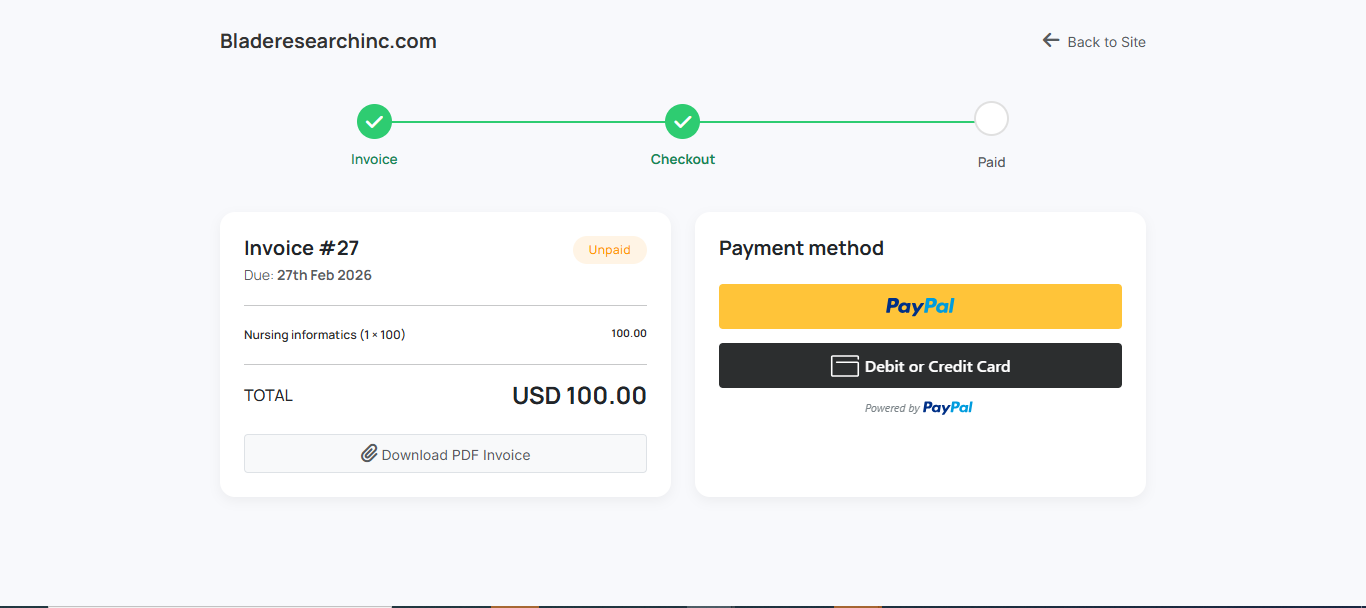

Order Submission & Payment Guide
A step-by-step interactive guide for students and billing clients. Select your path below.
⚠️ Important: Admin-Created Orders (Weekly/Active Classes)
If you have an active class (s) with weekly billing, our Billing Department may create the order for you directly. You will receive an email notification immediately upon creation.
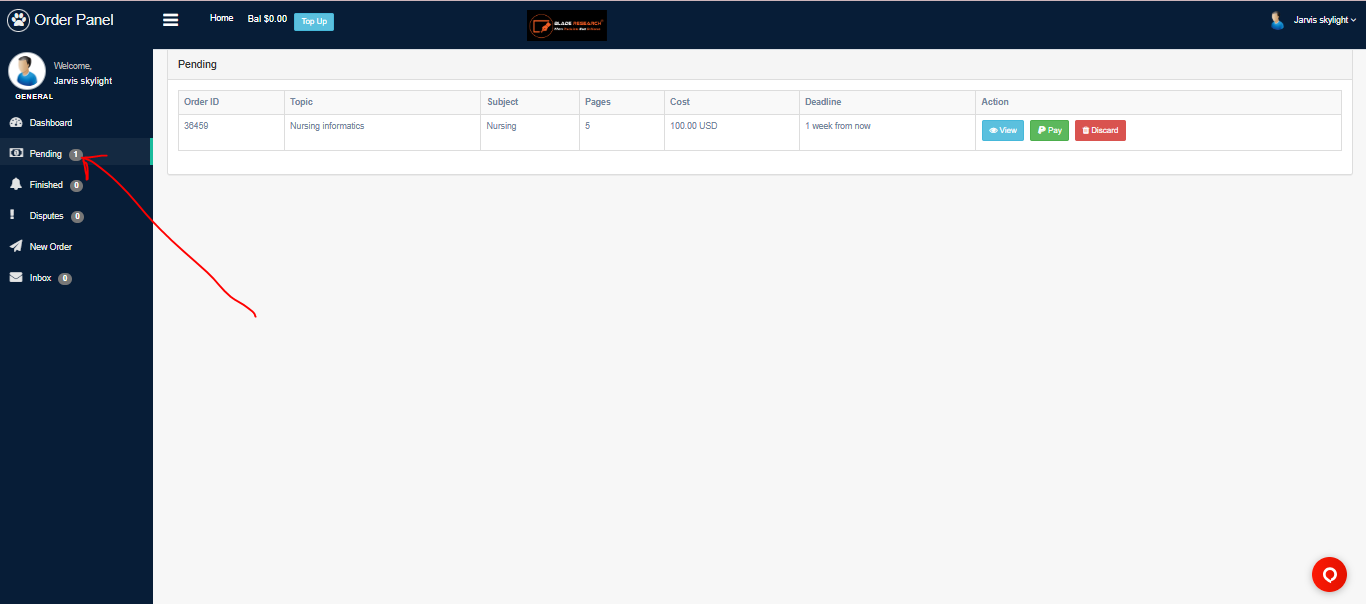
To Pay: Login to your Blade Account → Go to "Pending Orders" → Find the Admin Order → Click "Pay Now".
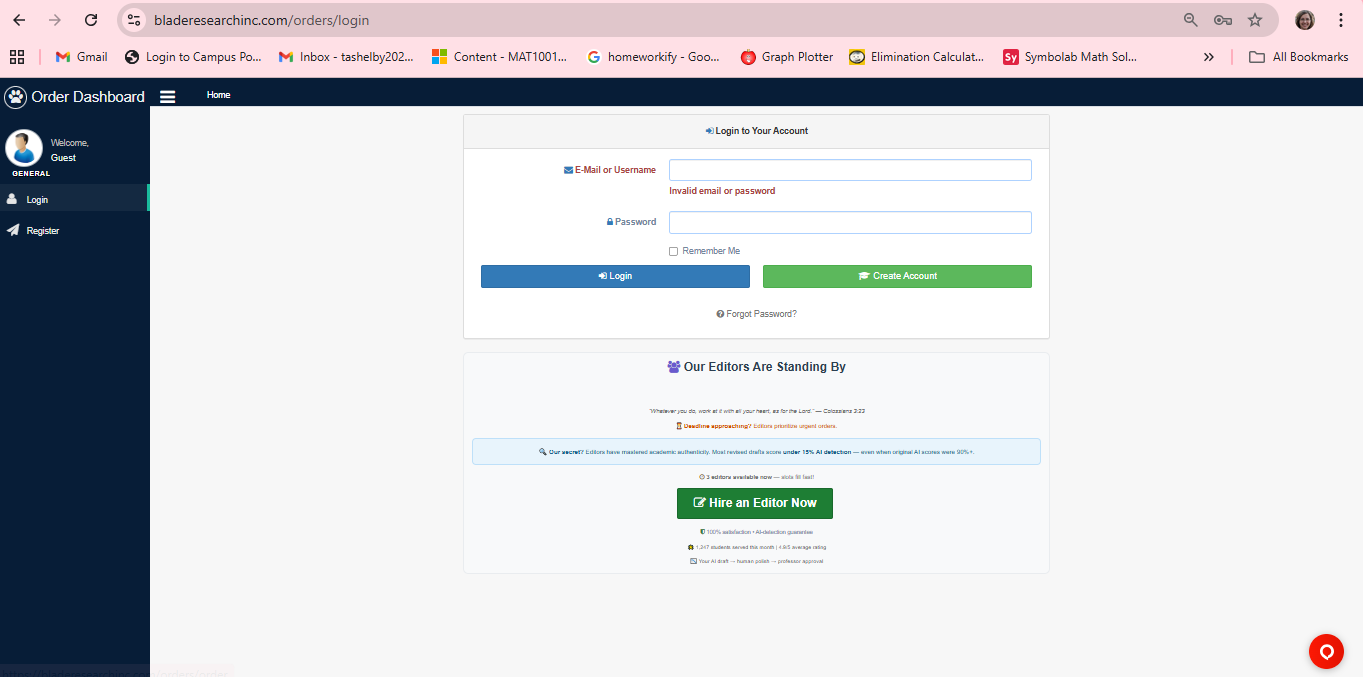
Step 1: Access Your Dashboard
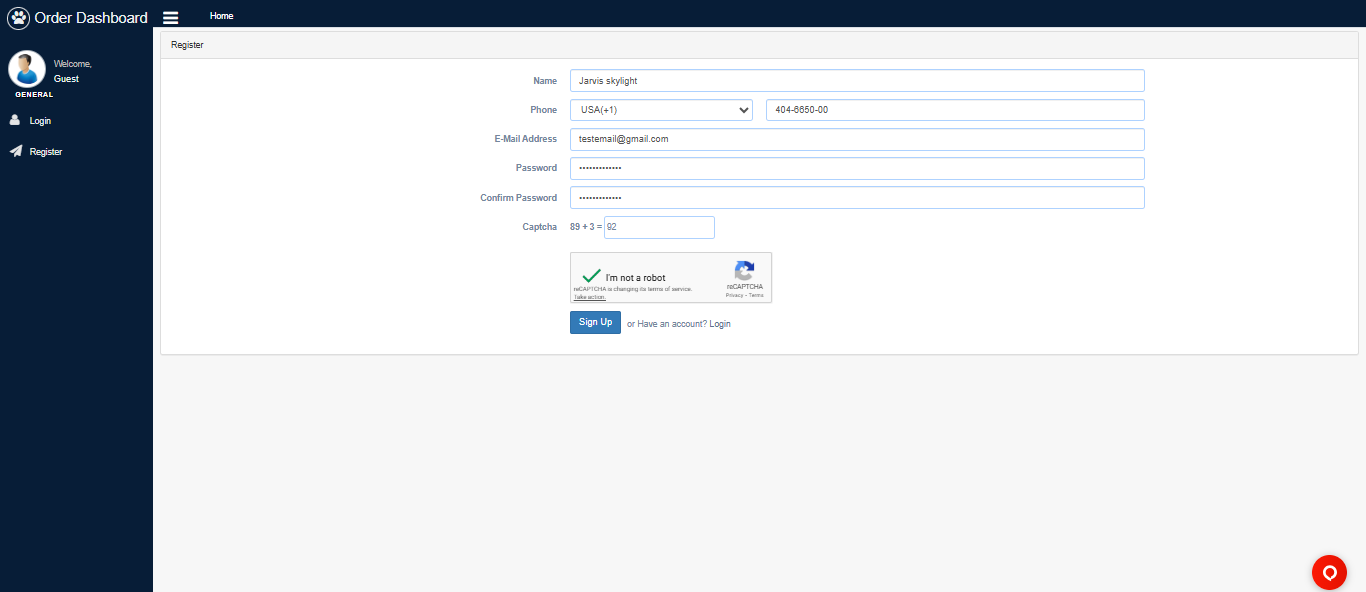
Login to your existing account or register a new one using a personal email.
For privacy, do NOT use university emails (.edu). Use Gmail, Outlook, or Yahoo.
- ✅ Personal Email Only
- ✅ Strong Password
- ❌ No School Emails
If an admin created an order for you, look for the notification email now.
- Subject: "New Order Created"
- Contains Order ID & Price
- Link to Pending Orders
Step 2: Create or Locate Order
Choose your path: Place a new order yourself OR find the admin-created invoice.
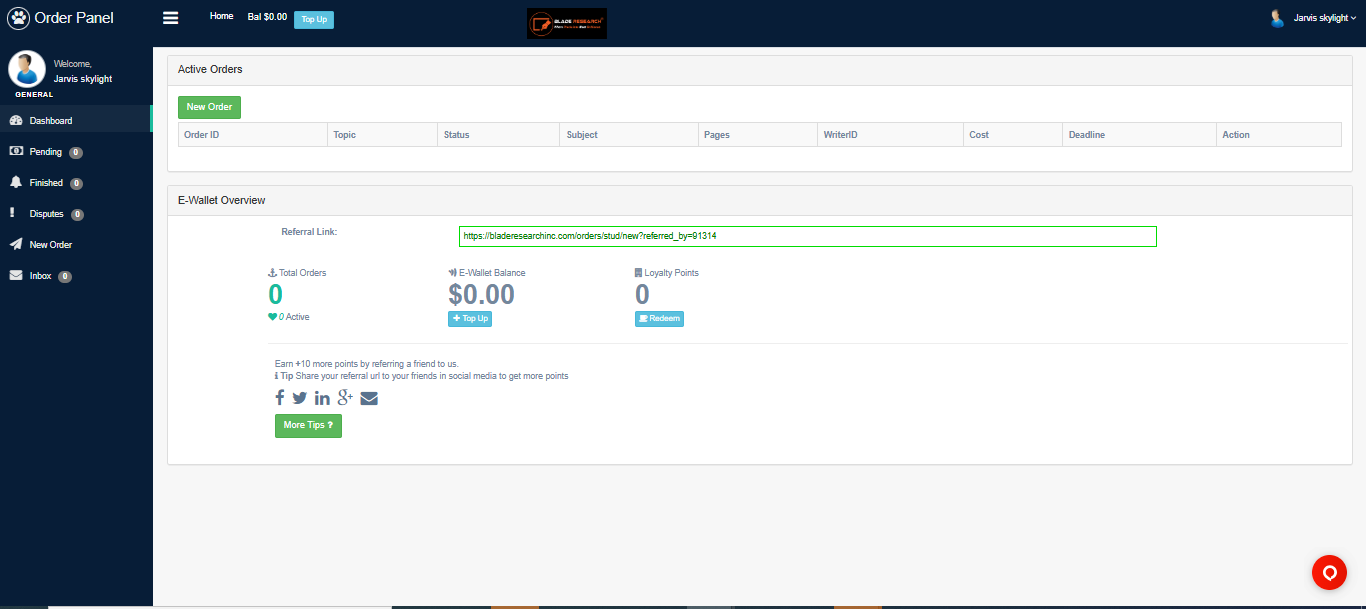
Navigate to "New Order" and fill in your assignment details manually.
- Upload Rubric/File
- Select Deadline
- Enter Page Count
Go to "Pending Orders". You will see the order created by our billing team.
- Pre-filled Details
- Price Already Set
- Ready for Payment
Step 3: Review & Confirm
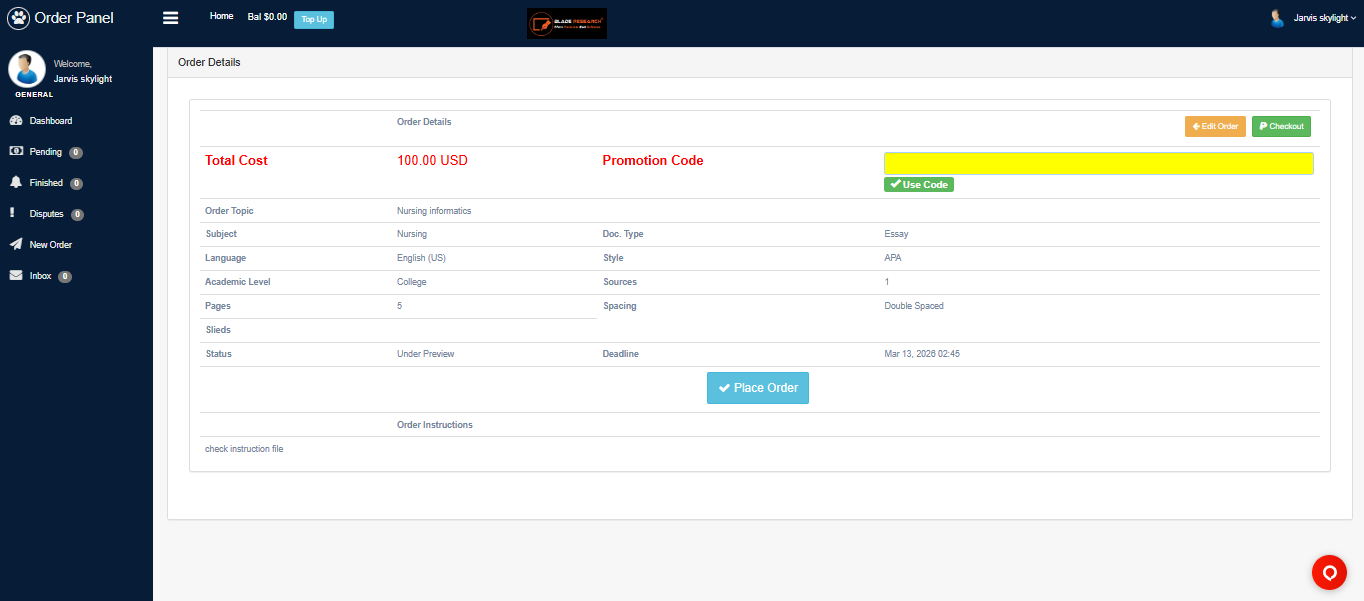
Verify all details match your requirements before proceeding to payment.
- Topic matches your instructions exactly.
- Deadline date and time zone are correct.
- Total price reflects the page count/urgency.
- For Admin Orders: Confirm the weekly invoice amount is correct.
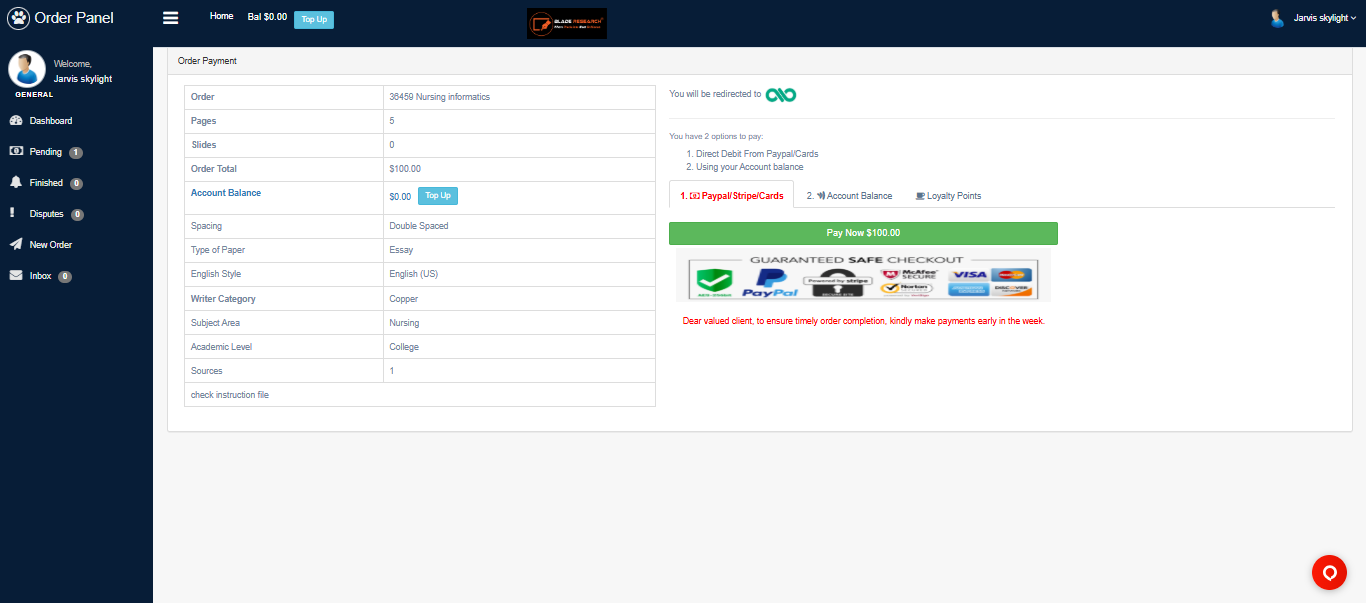
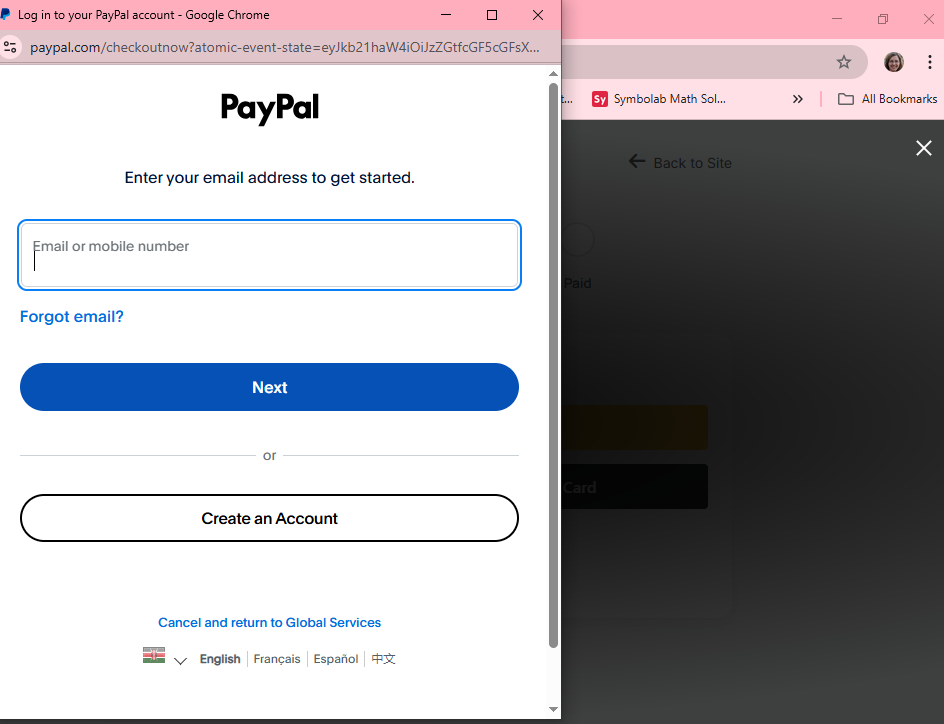
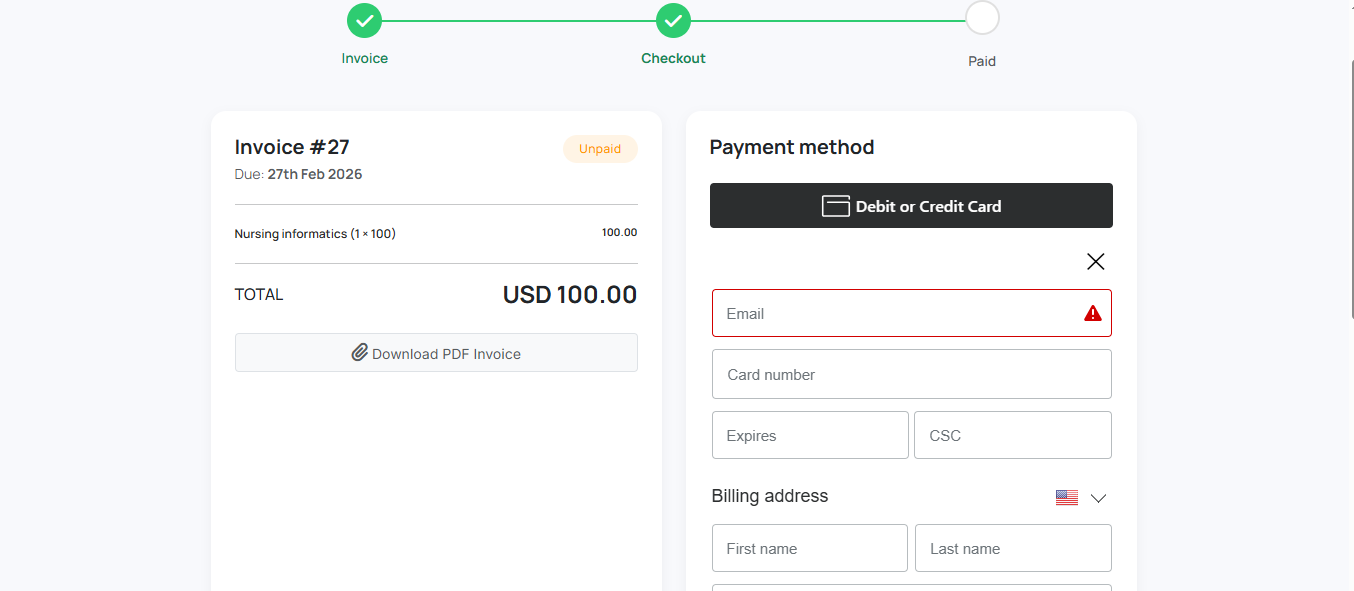
Step 4: Secure Payment
Complete your transaction. Your work begins immediately after payment.
⏱️ Why Pay On Time?
We operate as a team. Delays stop the pipeline.